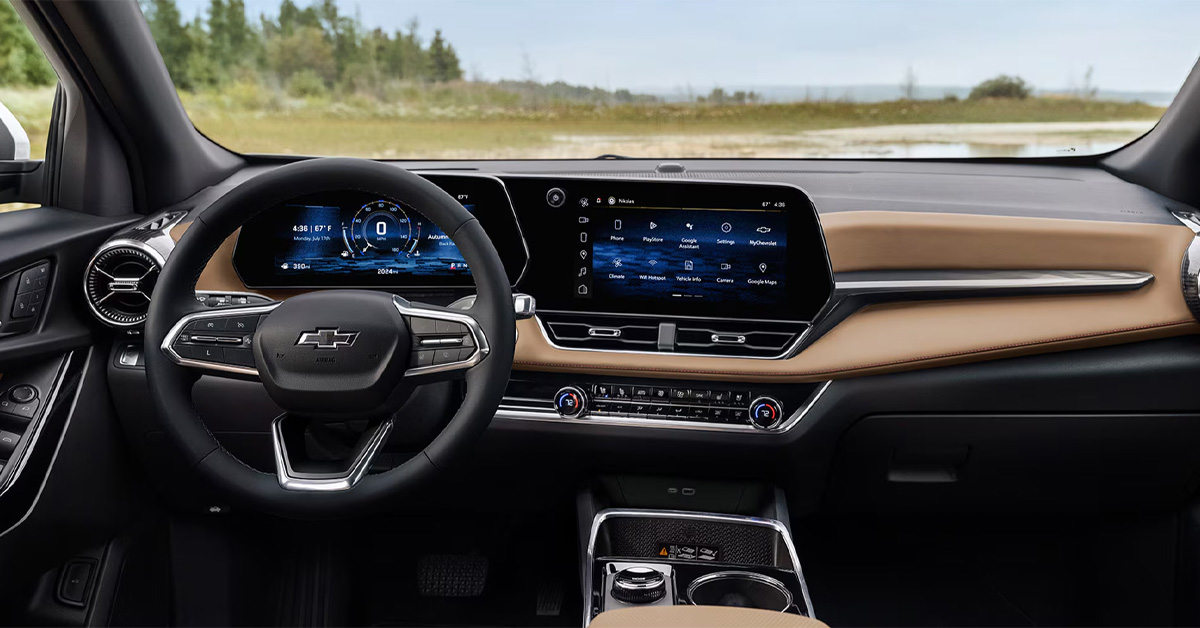
Setting the correct time in your Chevy is simple and quick, whether you need to adjust for daylight savings or reset the dashboard after a battery change. You can update the clock manually using the buttons on older models or through the touchscreen infotainment system on newer vehicles like the Chevy Traverse. This step-by-step guide walks you through every method, explains how to enable automatic time settings, and offers troubleshooting tips to ensure your Chevy dashboard clock is always accurate.
Southern California Chevrolet Dealers are here to help with all your automotive needs, from sales to service, parts, and more. With locations across Ventura, Los Angeles, Riverside, OC, San Bernardino, and the Inland Empire, our team is ready to assist you. Call or contact us today to get expert guidance or schedule a visit.
Step-by-Step Guide to Changing Your Chevy Clock
Resetting the clock in your Chevy is simple, whether you have a button-based dashboard or a touchscreen system in a Traverse. A proper Chevy dashboard clock reset ensures your time is always accurate for trips, work, or family errands.
For Older Models with Physical Buttons
- Locate the Hour and Minute buttons on the dashboard.
- Press the Hour button until the correct hour shows.
- Press the Minute button until the correct minutes display.
- Confirm AM or PM if your clock uses a 12-hour format.
- Check the time on your dashboard to make sure it is correct.
For Touchscreen Infotainment Systems
- Press the Settings icon on your home screen.
- Select the System tab.
- Tap Time/Date, then choose Set Time.
- Use the arrows to adjust hours and minutes.
- Save your settings and check the dashboard display.
Tips for Accurate Time
- Verify AM and PM settings on 12-hour clocks.
- Use smartphone or GPS time to confirm accuracy.
- Repeat steps if the clock does not update immediately.
- Performing a Chevy dashboard clock reset after battery replacement keeps time synced with your infotainment system.
This simple process helps drivers across Ventura, Los Angeles, Riverside, OC, San Bernardino, and the Inland Empire stay on schedule. Properly setting your Chevy clock makes every drive smoother and reduces stress on busy days.
Why Knowing How to Set Your Chevy Clock Matters
Having the correct time in your Chevy keeps your drives on track and avoids confusion on the road. Whether you are commuting through Los Angeles or taking a trip across the Inland Empire, knowing how to adjust your dashboard clock matters. A quick set Chevy clock guide helps you save time and stay organized.
Getting the clock right has practical benefits:
- Ensures navigation and maps show accurate arrival times.
- Keeps your schedule correct for appointments and school runs.
- Helps your infotainment system sync properly with apps and services.
- Makes Traverse drives easier to manage, especially for families on the go.
Even a small time difference can cause stress during trips or errands. Learning how to set your Chevy clock is a simple step that keeps every drive smoother.
Understanding Your Chevy Dashboard Clock
Chevy dashboards come in different styles depending on the model, including the popular Traverse. Some vehicles have physical buttons for the clock, while newer models use touchscreens. Knowing how your dashboard works makes it easy to change Chevy clock settings whenever needed.
Key things to know about Chevy clocks:
- Manual vs touchscreen adjustment methods.
- AM/PM and 24-hour time options.
- Integration with infotainment features like radio and navigation.
- Compatibility with automatic time syncing for convenience.
Understanding these basics ensures you can make quick updates without frustration. Whether driving through Ventura or Riverside, your dashboard clock stays accurate and easy to read.
When You Might Need to Change Your Chevy Clock
There are several reasons you might need to adjust your Chevy clock, especially in regions like OC or San Bernardino. Daylight changes are the most common reason. Observing daylight saving time means clocks must move forward in the spring and back in the fall.
Other reasons include:
- Battery replacement or disconnecting your vehicle.
- After software updates to infotainment systems.
- Moving across time zones within Southern California.
- Infotainment settings reset accidentally.
Even small errors in your Traverse clock can affect appointments, navigation, and daily routines. Updating the clock ensures you stay on time and reduces distractions while driving.
Using Automatic Time Settings for Convenience
Many newer Chevy models, including the Traverse, allow you to set the clock to update automatically. This feature saves time and prevents errors during daylight saving time or long drives. A step-by-step Chevy clock setup can make your daily commute and road trips simpler.
How to Enable Automatic Time
- Press the Settings icon on the home screen of your infotainment system.
- Select the System tab, then tap Time/Date.
- Turn on the Automatic Time and Date option.
- Verify that your time zone is correct.
- The clock will now update automatically for daylight savings and after system resets.
Benefits of Automatic Settings
- No need to manually adjust the clock during daylight saving time
- Keeps time accurate when traveling across Southern California cities.
- Reduces distractions while driving, letting you focus on the road.
- Works with infotainment apps like navigation, radio, and phone syncing.
Using automatic settings ensures your Traverse is always on time, whether you drive through Ventura, Los Angeles, Riverside, OC, San Bernardino, or the Inland Empire. This simple step keeps every drive stress-free and your schedule on track.
Troubleshooting Common Clock Issues
Even with the right steps, your Chevy clock can sometimes act up. A proper set of Chevy clock guides helps fix most issues quickly. Knowing common problems saves time and keeps your dashboard accurate.
Common issues and solutions:
- Clock does not change: Check that the infotainment system is on and the vehicle battery is stable.
- Time resets after battery disconnect: Perform a full Traverse dashboard clock reset.
- Touchscreen unresponsive: Restart the system or turn the vehicle off and on.
- AM/PM errors: Confirm 12-hour versus 24-hour settings in the system.
If problems persist, visit a local Chevrolet dealer for help. Proper troubleshooting ensures your clock stays correct on every drive.
Extra Tips for Chevy Owners
Adjusting your clock is simple, but a few extra tips make it even easier. Knowing how to change Chevy clock settings keeps your car ready for every trip.
Helpful suggestions include:
- Sync the clock with your smartphone or GPS for accuracy.
- Check settings after battery changes or software updates.
- Use the touchscreen for faster adjustments on newer models.
- Keep manual adjustment instructions in the glove box for quick reference.
- Set automatic updates if your model supports it.
These small steps save time and reduce stress when driving through busy areas. A well-set clock keeps your Traverse organized for family trips or daily errands.
Staying Updated for Daylight Savings and Travel
Time changes in spring and fall can affect any Chevy clock. Observing daylight saving time requires simple updates to stay accurate.
Ways to keep your Traverse clock current:
- Turn on automatic time settings when available.
- Manually adjust the clock when crossing time zones in Southern California.
- Check the clock after vehicle service or battery replacement.
- Use GPS or smartphone time as a reference.
Staying updated prevents missed appointments, navigation errors, and distractions while driving. Accurate time keeps every trip across Ventura, Los Angeles, Riverside, OC, San Bernardino, or the Inland Empire smooth and stress-free.
How do I change the clock on my Chevy step-by-step?
Press the Settings icon on the home screen, select the System tab, tap Time/Date, choose Set Time, then use the arrows to adjust hours and minutes. Save your settings when done.
Which infotainment menus control date and time?
The System menu on your Chevy touchscreen controls both date and time settings.
Can I switch between 12- and 24-hour formats?
Yes, the time settings menu allows you to select either 12-hour or 24-hour clock formats.
Does GPS sync update the time automatically?
If automatic time is enabled, GPS and network signals can update your clock to the correct time, including adjustments for daylight savings.
How do I reset the clock after a battery disconnect?
Perform a Chevy dashboard clock reset by accessing the Time/Date menu in the System settings and manually setting the correct time, or enable automatic updates for GPS syncing.
Get Help Setting Your Chevy Clock and Explore Vehicles
Keeping your Chevy clock accurate is just one way to stay on time and in control while driving. Our dealerships across Ventura, Los Angeles, Riverside, OC, San Bernardino, and the Inland Empire are ready to help with all your automotive needs. From sales to service and parts, our team is here to guide you every step of the way.
Explore our wide selection of vehicles, including the Traverse, and find the model that fits your lifestyle. For more insights about Chevrolet vehicles, check out our guides on Trax reliability, Trax ownership costs, and Trax gas range to see how Chevrolet keeps driving simple, safe, and affordable.
Whether you are visiting for a test drive, scheduling service, or learning about features, our team is ready to assist. Call or visit Southern California Chevrolet Dealers today to get expert help and explore everything Chevrolet offers.
Disclaimer: All information is provided for general informational and entertainment purposes only. While we strive for accuracy, we cannot guarantee that all content is complete, current, or error-free. Any reliance you place on such information is strictly at your own risk. This article may include opinions and is not endorsed by, or officially affiliated with, any vehicle manufacturer or brand. Always consult official sources – such as the vehicle’s owner’s manual, authorized dealerships, or certified professionals – for the most up-to-date and personalized information.